TEC ESS Enhanced Sign in Security USB Fingerprint Biometric Passkey Scanner (SecureTouch TE-FPA-CA1)
Quick take
TEC’s SecureTouch TE-FPA-CA1 is a USB fingerprint reader for Windows Hello on Windows 10 and Windows 11, aimed at faster logins and convenient sign-in for shared PCs. The key benefit is on-device “match-on-chip” processing, and it supports up to 10 saved fingerprints. The main buying caveat is setup, including installing available Windows updates and choosing the right power connection (some users report sleep or driver re-detection issues on certain USB setups).
Pros and cons
Pros
- Match-on-chip approach, designed so fingerprint templates are processed and stored on the device.
- Windows Hello support for faster sign-in (claimed under-1-second access, with very fast recognition performance).
- 360-degree capacitive touch sensor, designed for touch from different angles.
- Supports up to 10 fingerprint templates, useful for families or small shared workstations.
Cons
- Setup can be easy, but missing steps (like installing Windows updates) can lead to Windows Hello not functioning correctly.
- Some buyers report occasional driver detection or sleep-related behavior depending on USB port power.
What buyers think
Buyer-review evidence is limited, but recurring themes show up around usability and setup. Many users describe the scanner as straightforward once the correct setup steps are followed, and several highlight that it can be fast and reliable for Windows 11 sign-in. Setup reliability seems to depend on keeping Windows updated and completing the Windows Hello workflow after drivers are ready. A smaller portion of feedback points to potential hiccups such as driver reloading after sleep, or the scanner not being detected when connected through certain add-on USB cards, while reconnecting to a different port can resolve it. There are also mixed experiences regarding instruction language on packaging, which may matter if you prefer printed English guidance.
What this scanner is for
The TEC SecureTouch TE-FPA-CA1 is built for people who want to sign in to Windows using a fingerprint instead of typing passwords. It’s a good match if you manage sign-in on a single Windows machine (desktop or laptop) and you want biometric login to feel close to plug-and-play. It also fits small shared situations where multiple people need their own fingerprint profile (up to 10 templates).
Key features that affect day-to-day use
Match-on-chip privacy approach
The scanner uses match-on-chip technology, meaning fingerprint data is intended to be processed and stored only on the device rather than transmitted to your computer or over the internet. If privacy is a priority, this architecture is a major reason to consider this model versus scanners that rely more heavily on external handling.
Windows hello and windows hello for business orientation
This is designed to work with Windows Hello on Windows 10 and Windows 11, and it also targets Windows Hello for Business scenarios. Practically, that means you’re expected to set up Windows Hello using the built-in Windows workflow rather than a separate authentication app.
360° capacitive touch sensor
The TE-FPA-CA1 uses a capacitive touch sensor with 360° recognition, which is intended to reduce “hunt-and-peck” behavior. If you often sign in quickly or don’t want to carefully align your finger every time, this is one of the more buyer-relevant functional details.
Fast recognition performance claims
The product positioning emphasizes speed, including recognition speed listed as under 50 milliseconds and “under 1 second” login time. Real-world performance can vary based on system configuration and setup, but buyers who got through setup successfully often describe the experience as fast and seamless.
Capacity for multiple fingerprints
Storage is listed at 10 fingerprint templates. That makes it suitable for families or shared office PCs where a few users need separate sign-in profiles, rather than a single-person biometric device.
Setup, compatibility, and the most common friction points
Windows updates matter
Some buyers report that after Windows recognizes the device and installs its fingerprint driver, it’s important to install any available Windows updates before completing the Windows Hello setup. If you skip that step, you may have a frustrating experience where Windows Hello doesn’t behave as expected and you think the scanner is defective when it’s actually a software readiness issue.
USB power and sleep behavior can be a factor
There are reports that connecting the scanner through certain USB setups, such as a PCIe USB card, may cause trouble waking from sleep. Switching to a built-in USB port that provides always-on power can resolve it. Another buyer also reported an occasional driver “vanishing” pattern, with unplug and replug bringing it back. The takeaway is not that the device is unreliable, but that stable power and clean driver re-detection are important for best behavior.
Instruction language expectations
Another report indicates later packaging may include English instructions, and that a QR-code setup route can provide access to an English manual. If you rely on printed English guides, plan for the possibility that you may need to use the QR code route.
Pros and cons in plain terms
Why you might like it
- If you want biometric sign-in on Windows with an on-device processing approach, this model’s match-on-chip design is directly relevant.
- If multiple users need access (up to 10 profiles), it’s positioned for shared use.
- If you value quick, angle-tolerant touches, the 360° capacitive sensor is a practical advantage.
When to think twice
- If your priority is “no setup at all,” you should be prepared to complete driver readiness steps and the Windows Hello configuration workflow.
- If you frequently use sleep states and rely on power through add-on USB hardware, consider using built-in ports for the most consistent wake-and-detect behavior.
- If English-only printed instructions are a must-have, review how you’ll handle QR/manual access during setup.
How it compares for different buyers
Best for
- Windows 10 or Windows 11 users who want fingerprint sign-in via Windows Hello without typing passwords.
- Buyers who prefer the idea of templates processed and stored on the device (match-on-chip) rather than relying on cloud handling.
Not ideal for
- Anyone who needs broad cross-platform support beyond Windows Hello (this model is Windows-focused).
- Users who must rely on sleep and wake through specialized USB expansion hardware, unless you can test with a built-in port to confirm stable behavior.
- Buyers who cannot tolerate any setup friction around drivers, updates, or instruction language.
Verdict: is the TEC SecureTouch TE-FPA-CA1 worth it?
The TEC SecureTouch TE-FPA-CA1 is worth considering if you specifically want a Windows Hello-oriented USB fingerprint reader with an on-device privacy approach and support for multiple users. It tends to work well once setup is done correctly, but the buyer experience can depend on Windows update readiness and the USB port power context. If you want plug-and-play convenience, make sure you’re prepared to finish driver and Windows Hello configuration properly, and if you use sleep frequently, prefer built-in USB ports for the most consistent results.
Price and availability
Check current availability and pricing before buying, since it can change. Buy on Amazon
FAQ
Does the TEC TE-FPA-CA1 work with windows hello on windows 10 and windows 11?
Yes. It’s designed for Windows 10 and Windows 11 and specifically targets Windows Hello, including Windows Hello for Business style scenarios.
How many fingerprints can it store?
It supports storing up to 10 fingerprint templates, which is suitable for families or small shared computers.
Is my fingerprint data stored on the device or sent to the computer or cloud?
The scanner uses match-on-chip technology, intended to process and store fingerprint templates on the device rather than sending them to your computer or to the internet.
Is setup really plug and play?
Many buyers describe it as straightforward plug and play, but complete success appears to depend on having the right Windows drivers and installing available Windows updates before finishing Windows Hello configuration.
What should I do if it stops detecting after sleep?
Some users report that changing how the scanner is powered, such as using a built-in USB port instead of a USB card, can help. Unplugging and replugging the USB connection has also been used to restore detection in at least one reported case.
Are instructions available in English?
There are mixed experiences. Some packaging may include English guidance, and a QR-code/manual route is positioned for setup and downloads, including an English manual.
Specifications
| Product Title | TEC ESS Enhanced Sign in Security USB Fingerprint Biometric Passkey Scanner – SecureTouch WireKey Fast Login <1s Windows Hello Business 360° Recognition TE-FPA-CA1 |
|---|---|
| Category | Electronics > Security & Surveillance > Biometrics |
| Brand | TEC |
| Manufacturer | TEC |
| Model Number | TE-FPA-CA1 |
| Compatible Devices | Desktop, Laptop, Tablet |
| Power Source | USB Powered |
| Connectivity Technology | USB Cable |
| Real Angle of View | 180 Degrees |
| Smart Home Compatibility | Smart Home Compatible |
| Mfr Part Number | TE-FPA-CA1 |
| Warranty Description | 12 Months |
| Unit Count | 1.0 Count |
| Built-In Media | Product Manual |
Recommended next
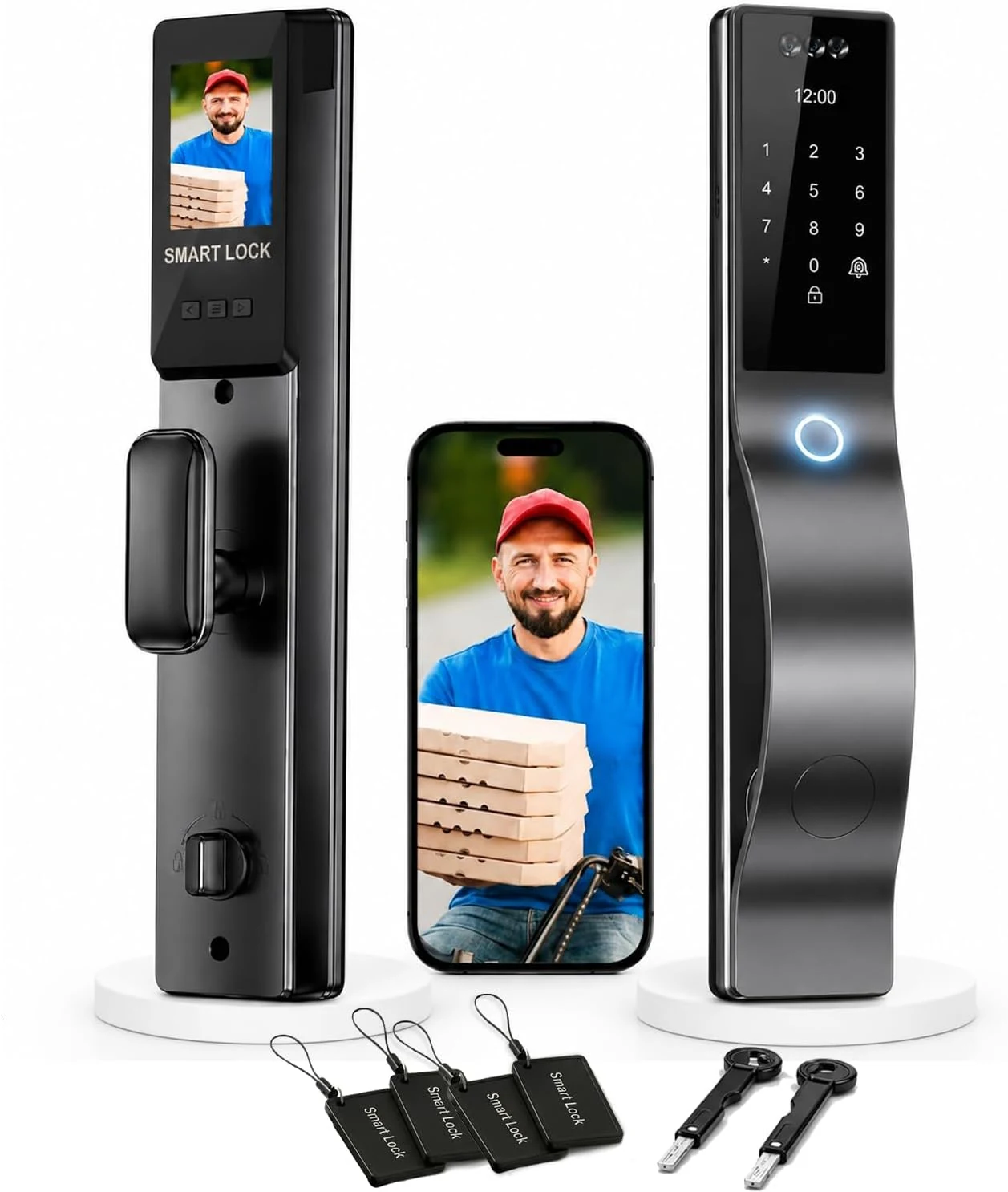
Smart Door Lock with Camera: 3D Face Recognition, Keyless Door
This smart deadbolt-style door lock blends 3D face recognition, fingerprint access, passcode (with anti-peep protection), IC cards, and a mechanical key, plus a built-in HD camera and two-way audio intercom. It is a strong fit for households and anyone who wants multiple entry options and remote visibility, with the main tradeoff being that battery performance and app connectivity depend on setup and usage habits.
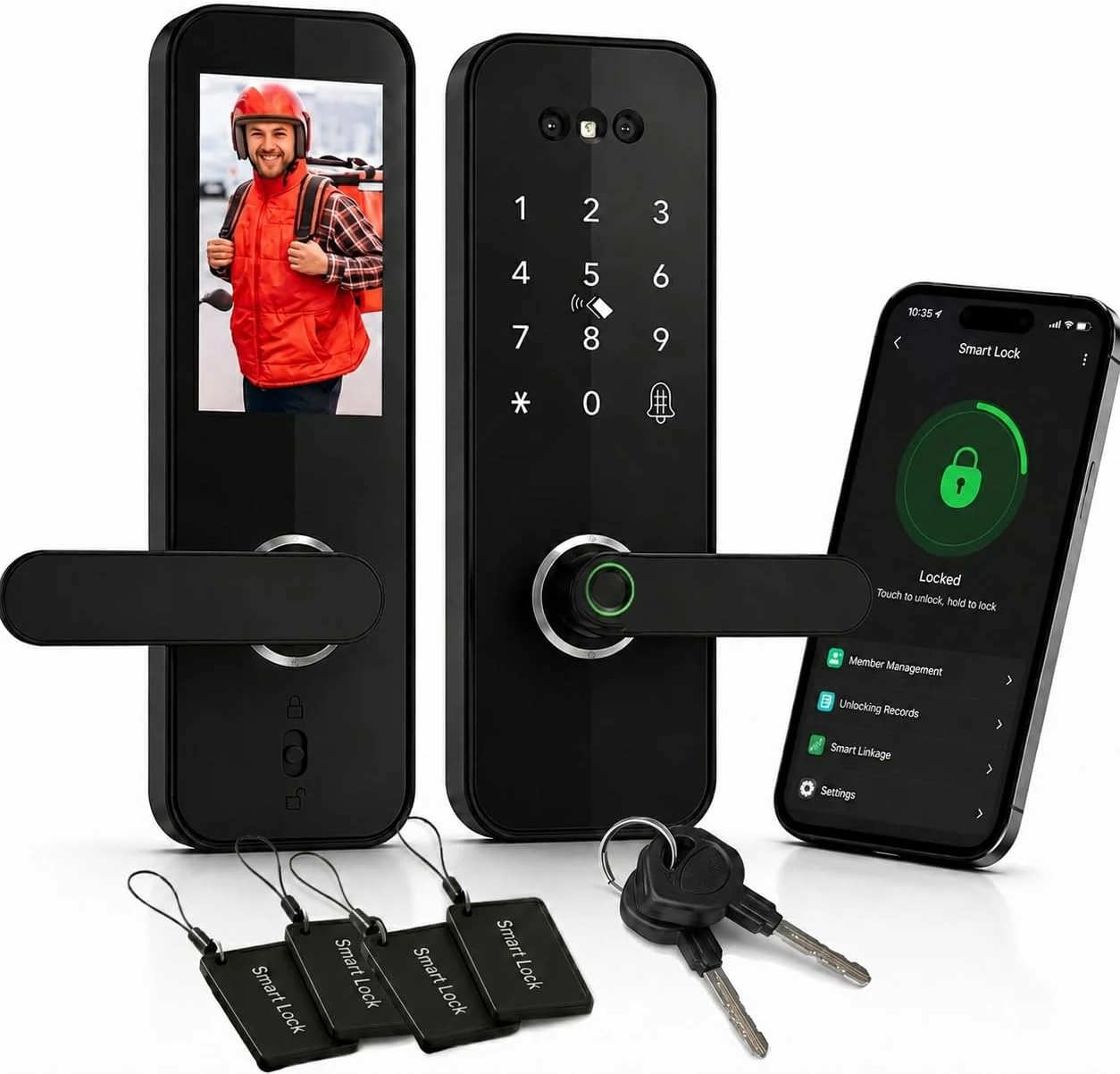
3D Face Recognition Smart Door Lock with HD Camera: Keyless Entry, Fingerprint, Passcode, IC Card, Key, Tuya App, Doorbell, Auto-Lock Deadbolt for Front Door
This 3D face recognition smart door lock combines hands-free entry with fingerprint, passcode, RFID IC cards, and a mechanical key, plus a built-in 1080p HD camera and doorbell. It supports Tuya app remote access, auto-lock, and an anti-theft alarm, with DIY installation designed for standard mortise deadbolts (45–90mm thick doors). The main buying caveat is compatibility and setup expectations, plus limited review evidence for real-world reliability.
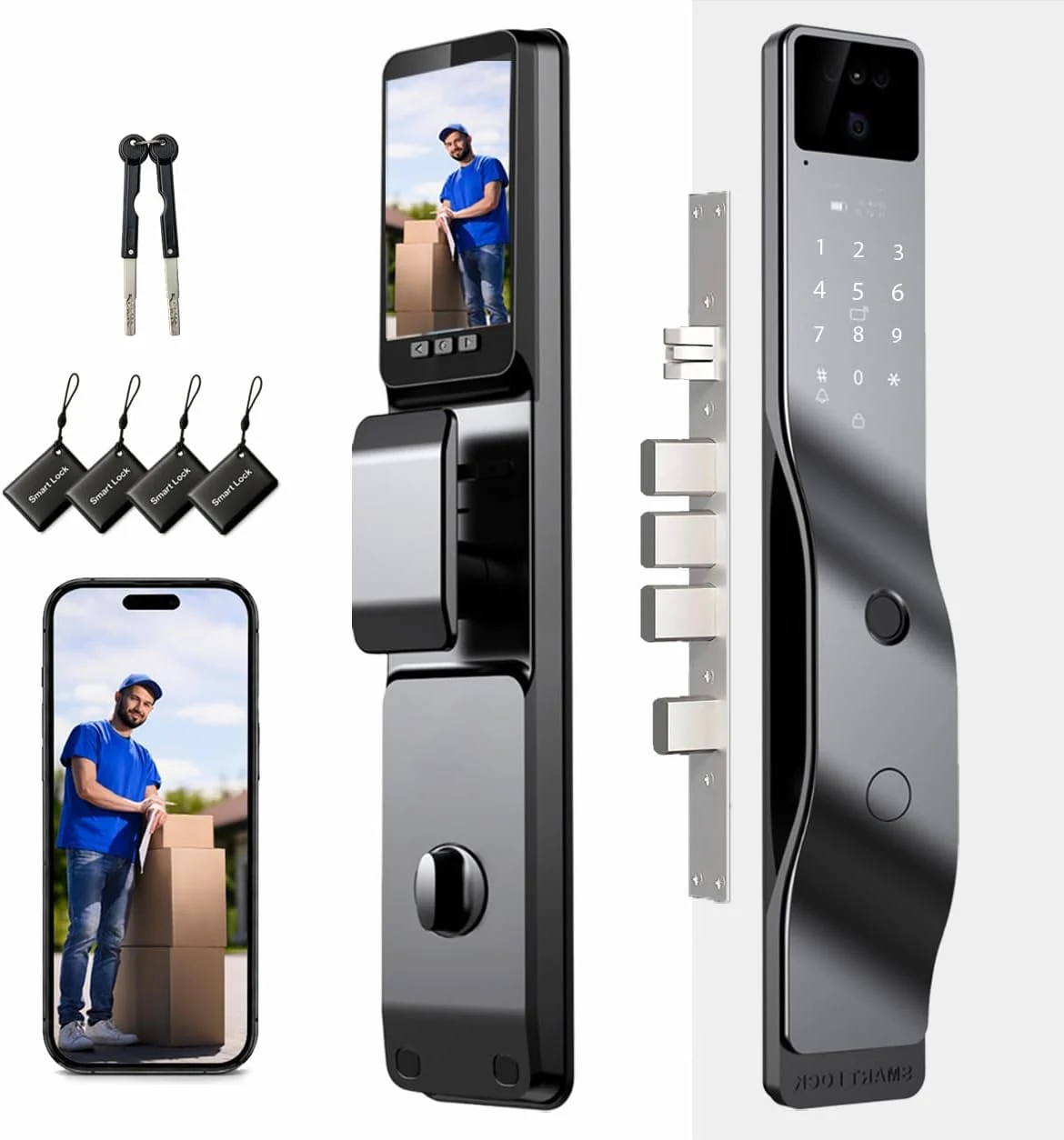
3D Face Recognition Smart Door Lock with 1080p Camera – Keyless Entry Deadbolt with Palm Vein, Fingerprint, Video Intercom, Alexa compatible & Tuya App Control
A feature-rich biometric smart deadbolt that combines 3D face recognition, palm vein scanning, fingerprint, passcode, IC cards, and emergency key access, plus a 1080p video intercom camera with two-way audio. Best for buyers who want multiple unlock options and remote monitoring via the Tuya app, but app reliability and long-term performance support are worth validating before relying on it day-to-day.
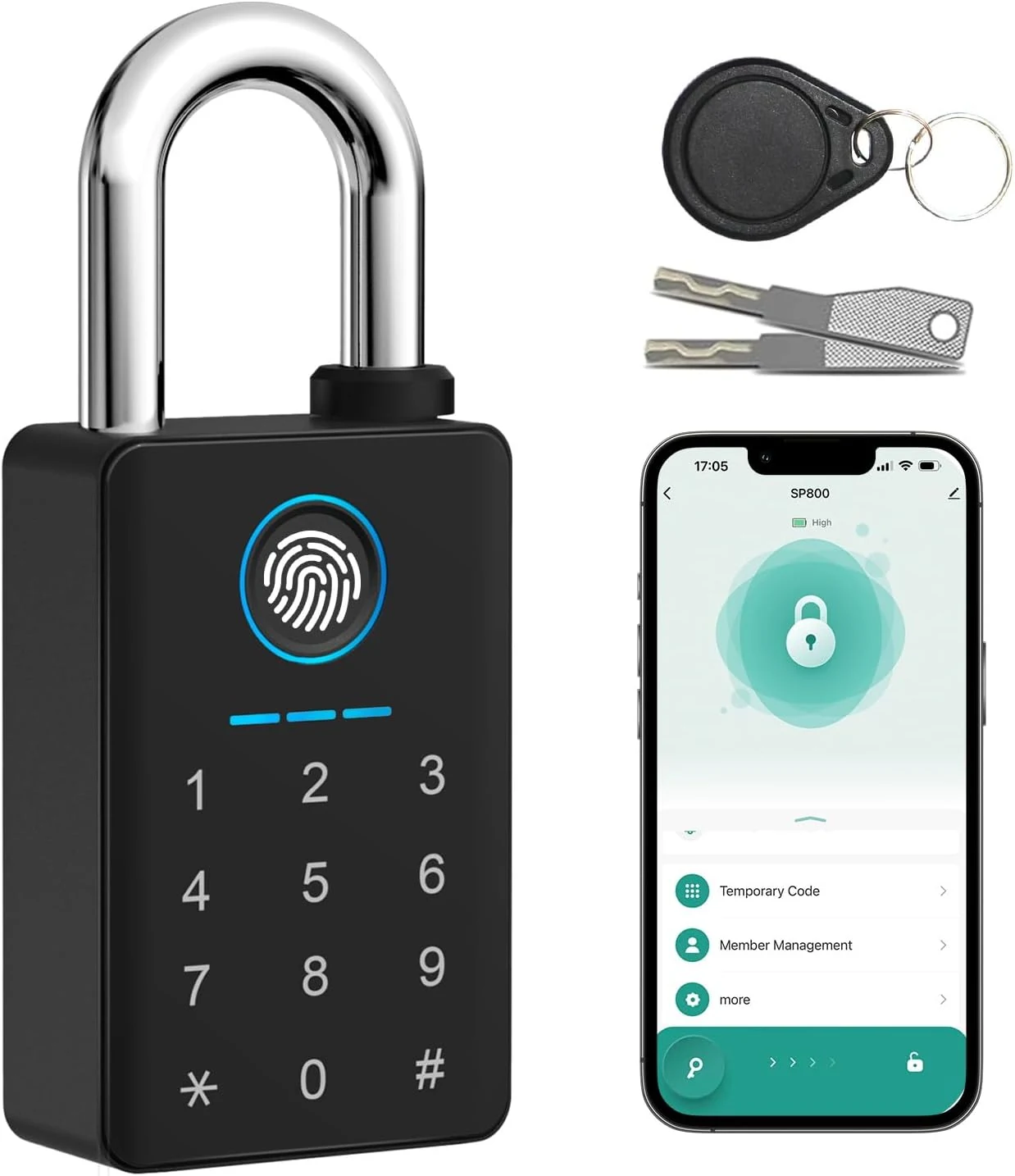
Aurosmart heavy duty fingerprint padlock with key, smart gate lock with keypad, keyless entry digital combination lock (Tuya app)
The Aurosmart fingerprint padlock is built for outdoor gate, shed, and storage use, combining fast fingerprint unlock with keypad, RFID/NFC-style access, Tuya app control, and a hardened steel shackle. It offers sizeable user storage and long battery life, but buyers should note sensitivity around the keypad area and that weather performance varies based on use conditions.